Put AI to work with your business context
Ask a real question, see the evidence behind the answer, and review whatever it prepares.
Updated October 5, 2026 4 min read
When a customer asks for an update, a useful answer depends on the conversation and the work already promised. AI in Command Center can read available workspace records through registered tools, explain the context it found and prepare supported next actions for review.
Open AI Workspace to start a conversation. A connected workspace needs its AI provider configured first. The public demo uses fictional business records and keeps business actions simulated; its answers use a real model when the server's AI provider is configured.
AI workflows use DeepSeek V4.1 Flash by default through the shared OpenRouter gateway. An installation can keep that default or select another approved model through its optional model setting. Provider keys remain server-side, and model calls keep the workspace budget, capability checks and usage receipt.
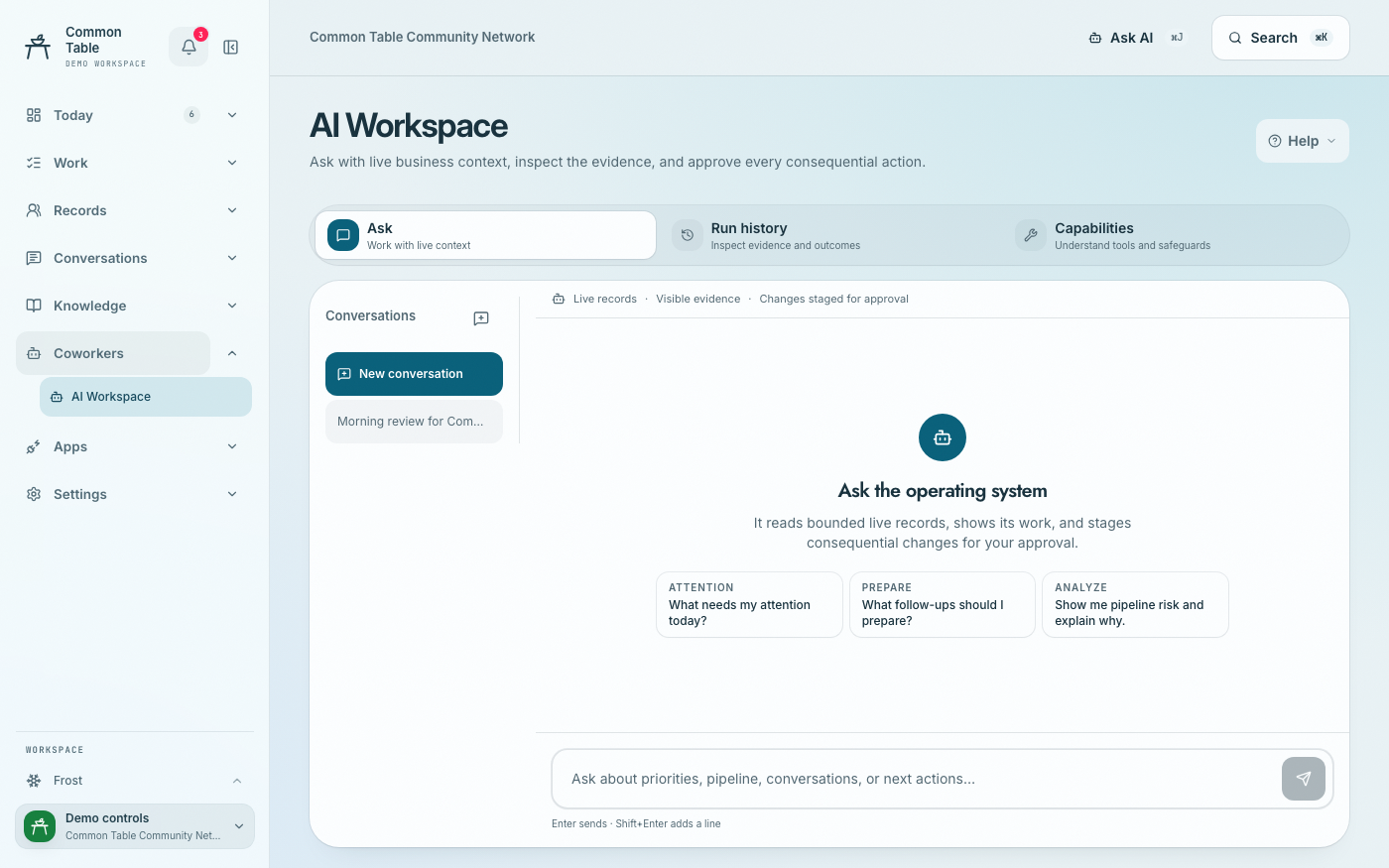
Start with a question that has a useful next step
Try "What needs my attention today?" first, then narrow it: "Show me this opportunity and explain why its next action is overdue." A useful answer names the records it read and is honest about the limits of that evidence, so you can open the source yourself and decide what to do next rather than taking the summary on faith.
For a request that changes something, name the customer or record and the exact change you want: "Prepare a follow-up for this conversation" or "Propose moving this opportunity to the next stage." What the assistant can do depends on the tools and permissions your workspace has enabled; the tool catalog is generated straight from the registered tools, not written as a marketing list of aspirations.
From a request to a recorded result
01 · available records
Read the context
The assistant uses registered tools to inspect the customer, conversation and work available to your workspace.
02 · specific proposal
Prepare a next step
A supported request becomes a proposed change with the record, recipient or task details available for review.
03 · explicit authority
Apply the action policy
Review actions that require a decision. Eligible actions can use a standing permission within its approved limits.
04 · recorded outcome
Check the result
Inspect what completed, open the source record and resolve any failure before repeating the work.
A read can answer you immediately, since nothing about it changes a record. A supported write instead prepares a proposal that waits for your review: inspect the affected record and the exact change in Approvals, approve it once it's right, then check the result afterward. That loop is what lets AI help with real operational work while the decision, and its outcome, both stay visible to you.
If a source is missing or a connection is down, a well-behaved answer says so rather than guessing around the gap. Source authority is how you tell the assistant which connected systems own which facts, so a Slack aside cannot silently outrank an approved record. Action results explains how to tell a prepared draft, an approved request, and a completed effect apart, which matters whenever you're deciding whether to retry something that might have already happened.
To inspect an answer, open Run history and select its row. The ordered trace shows recorded tool results, including failures, separately from the model response. An answer that asks for clarification may use no tools. Token usage displays as Not recorded when the provider did not report it. Older saved demo runs disclose missing tool evidence; ask a new question to record an inspectable trace.
Adding the capability your business needs
A custom AI tool can expose one narrow business operation: read a service history, prepare a renewal plan, propose a project update. Each one still needs real implementation and verification behind it, and once it exists, both your in-app assistant and any connected external assistant can use it through the same registered operation.
Plugin examples show the range of what that looks like in practice. Business Pulse computes its findings without a model call at all. Client onboarding prepares tasks for your approval. Opportunity Radar goes further, adding a full review workspace with its own evidence and model-budget controls.
What to check
- The MCP connection guide explains how to bring your preferred external assistant into the same workspace. Connecting a client grants exactly the capabilities available to that workspace, never unrestricted access to every service or database behind it.
- For pipeline and revenue analysis, pair AI with the analytics guides rather than relying on either alone: a recorded amount, a forecast, and a genuine gap in the data mean three different things, and AI should help explain that evidence, not quietly turn an estimate into a confirmed payment.